
Getting started
3 articlesWhat is HeadSafe?
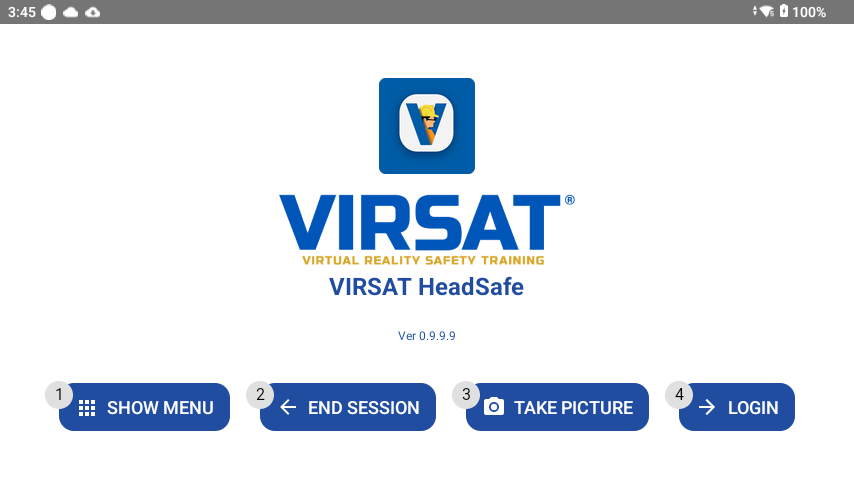
HeadSafe is a hands-free safety inspection platform for industrial field work. On a supported headset, field workers run guided, voice-controlled inspection workflows, report incidents by speaking, and stream their point of view to a supervisor when they need support. Managers use a companion web console to build inspections, review results, and monitor activity.
What do I need to use it?
A supported wearable headset running Android 8.0 or later, a HeadSafe account issued by your organization, and a valid device license. Your organization's administrator handles setup. You shouldn't need to configure anything technical.
How is HeadSafe installed on my headset?
HeadSafe is distributed through your device's app store or pushed by your organization's device management. If it isn't already on your headset, ask your administrator to assign it to your device.
Signing in
4 articlesHow do I log in on the headset?
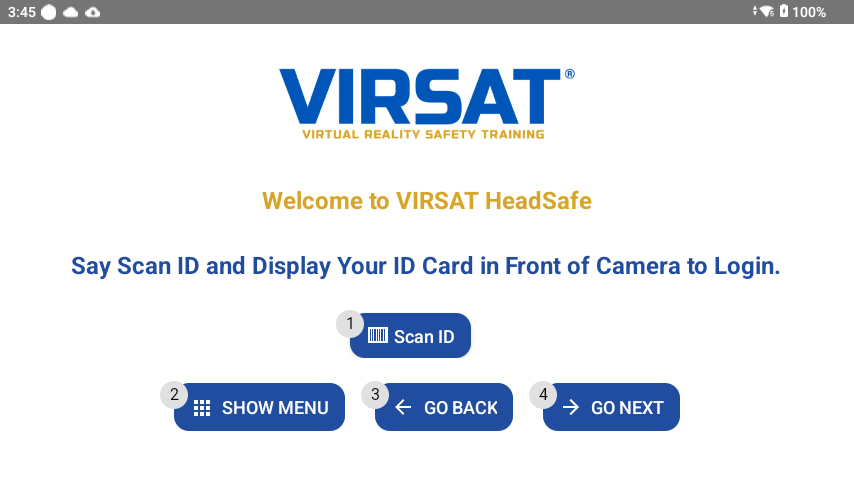
On the sign-in screen, say or select "Scan ID" and hold your employee QR code or ID badge in view of the headset camera. Once it's recognized, you're signed in and taken to your dashboard.
I don't have a QR code or badge. What do I do?
Contact your organization's administrator or manager. Accounts, badges, and device licenses are issued and managed by your organization, not by VIRSAT directly.
What is multi-factor authentication (MFA)?
On the web console, managers and admins can enable a second verification step at sign-in, using an authenticator app code in addition to a password. This is a portal feature and doesn't change how headset sign-in works.
I need to change or reset my password.
On the web console, use Change Password from your account menu. If you're locked out, ask your manager or admin to reset it for you.
Voice & navigation
3 articlesHow does voice control work?
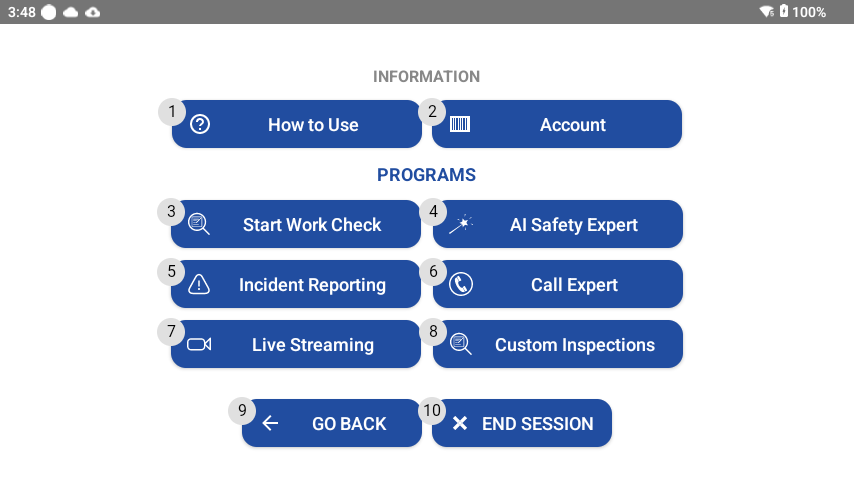
Every button on screen has a spoken label. Say what you see, clearly and at a normal pace, and the headset performs that action (no touch required). The most common commands you'll use across the app:
"Show Menu" "Go Back" "Go Next" "Select Item" "Take Photo" "Take Video" "Start Inspection" "End Session"
The headset isn't responding to my voice. What should I check?
- Make sure the boom microphone is positioned close to your mouth.
- Reduce background noise where possible, or turn slightly away from loud equipment.
- Speak the exact on-screen label rather than a paraphrase.
- If nothing responds, say "My Commands" to see every phrase currently available on that screen.
Can I still use the touchpad instead of my voice?
Yes. HeadSafe is designed voice-first for hands-free use, but the headset's touchpad and buttons work as a fallback at any time.
Safety workflows
4 articlesWhich guided workflows are available?
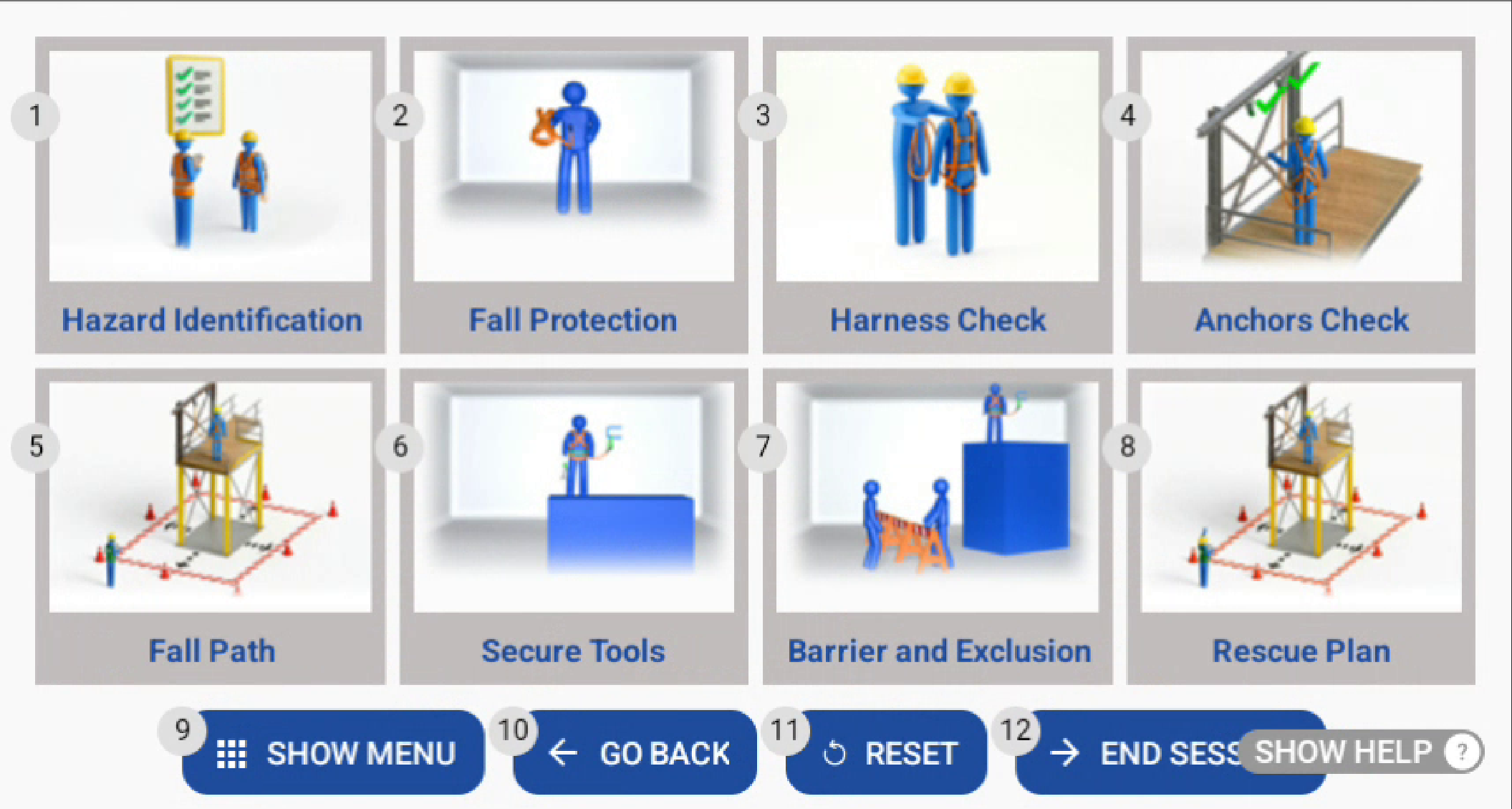
Say "Start Work Check" to see the full list: Confined Space, Working at Height, Vehicle Inspection, Excavation, Energy Isolation, Live Electrical, De-Isolation, Mechanical Lifting, Work Around Mobile, Hot Work, and Work Near Water, depending on what your organization enables. Each is broken into steps such as hazard identification, gas testing, ventilation, PPE checks, and rescue planning. Custom Inspections can also be created to your organization's specifications.
How do I start a workflow?
From your dashboard, say "Start Work Check", choose the task type, then follow each step in order. Say "Go Next" to advance once a step is complete.
Do I have to take a photo or video at every step?
Only where a step requires it: this is set by your organization when the workflow is built. Steps that need evidence will prompt you with a "Take Photo" or "Take Video" control before you can continue.
What if I need to stop partway through?
Say "Go Back" or "End Session" depending on where you are. Progress already recorded is saved; your organization's completion rules determine whether an interrupted inspection can be resumed later.
Custom inspections
2 articlesWhat's the difference between a standard and a custom inspection?
Standard workflows ship with HeadSafe. Custom inspections are created to your organization's specifications, either by VIRSAT or by your own team, often with the help of the web console's AI-assisted builder, to match a specific site procedure, equipment checklist, or form.
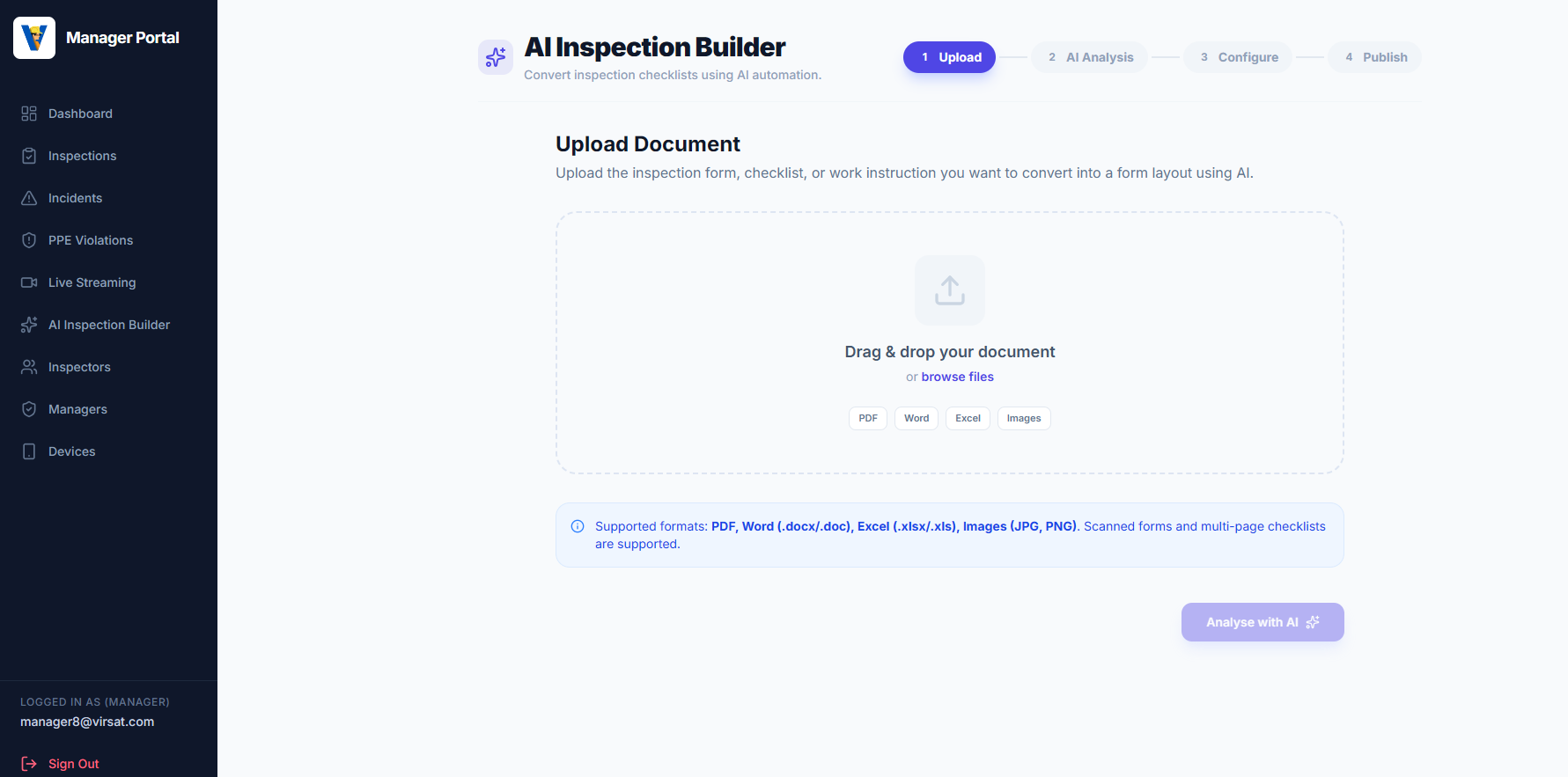
Can I complete a custom inspection without a network connection?
Yes. Once a custom inspection has been downloaded to your headset, it can be completed offline; your answers and media sync back automatically the next time you have connectivity.
Incident reporting
3 articlesHow do I report an incident hands-free?
Open Incident Reporting, choose the incident type, then speak your description when prompted. Your words are transcribed to text in real time, so you don't need to type. Say "Take Video" to attach supporting footage before submitting.
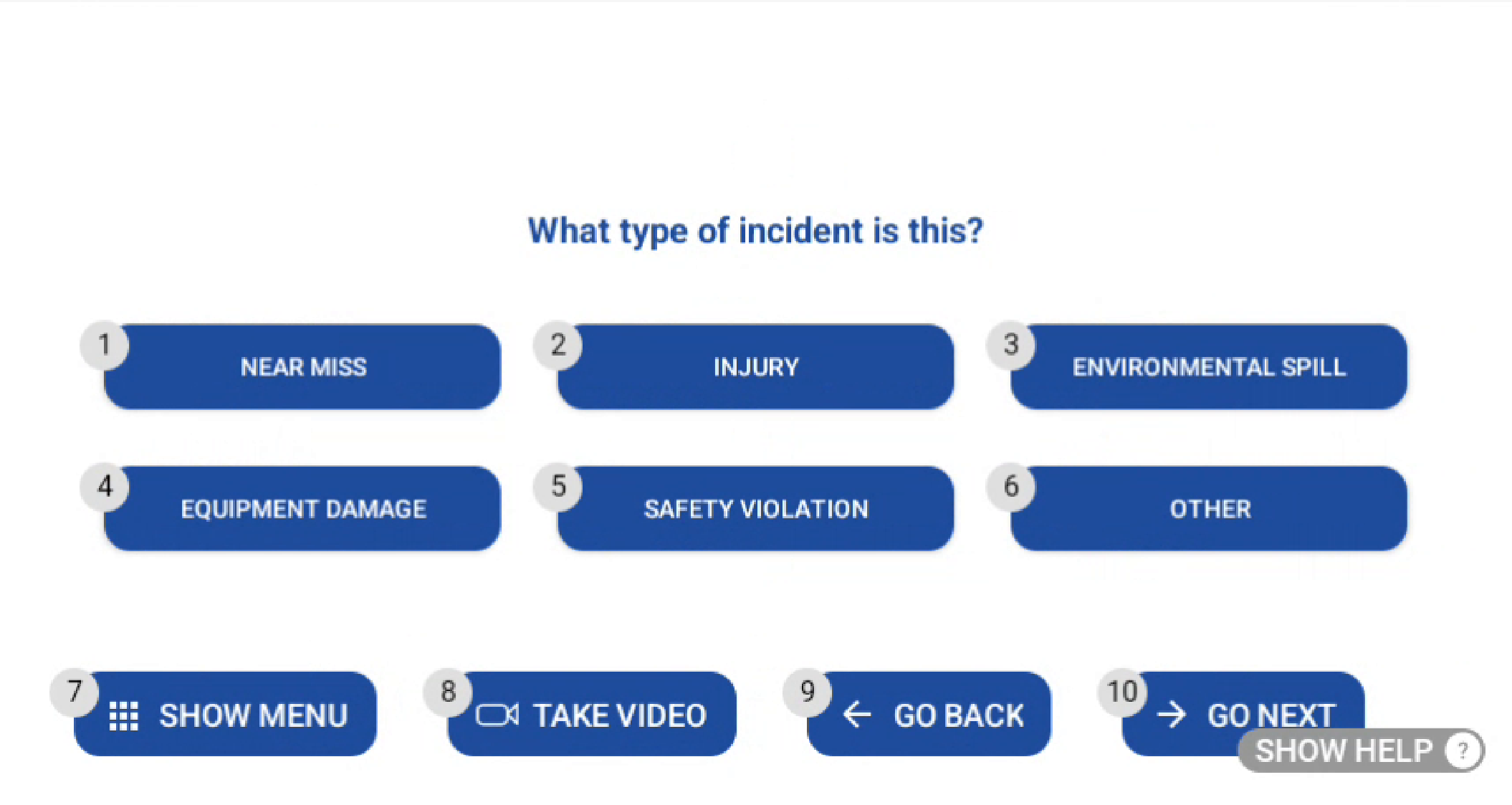
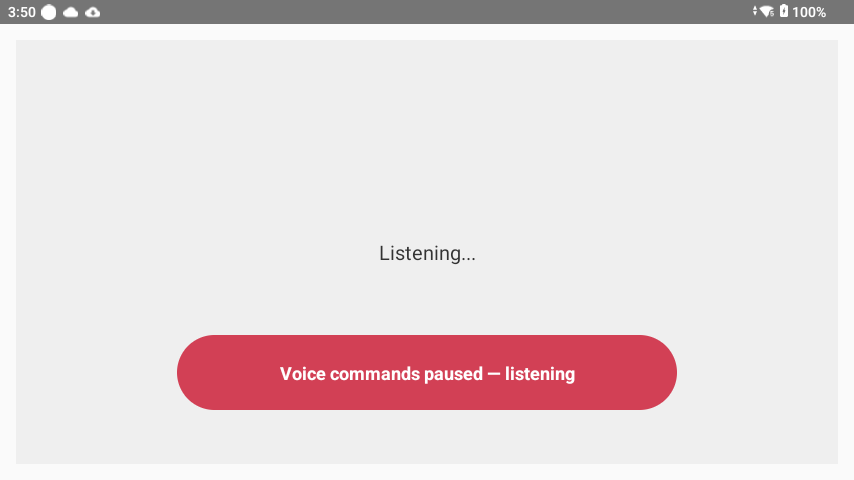
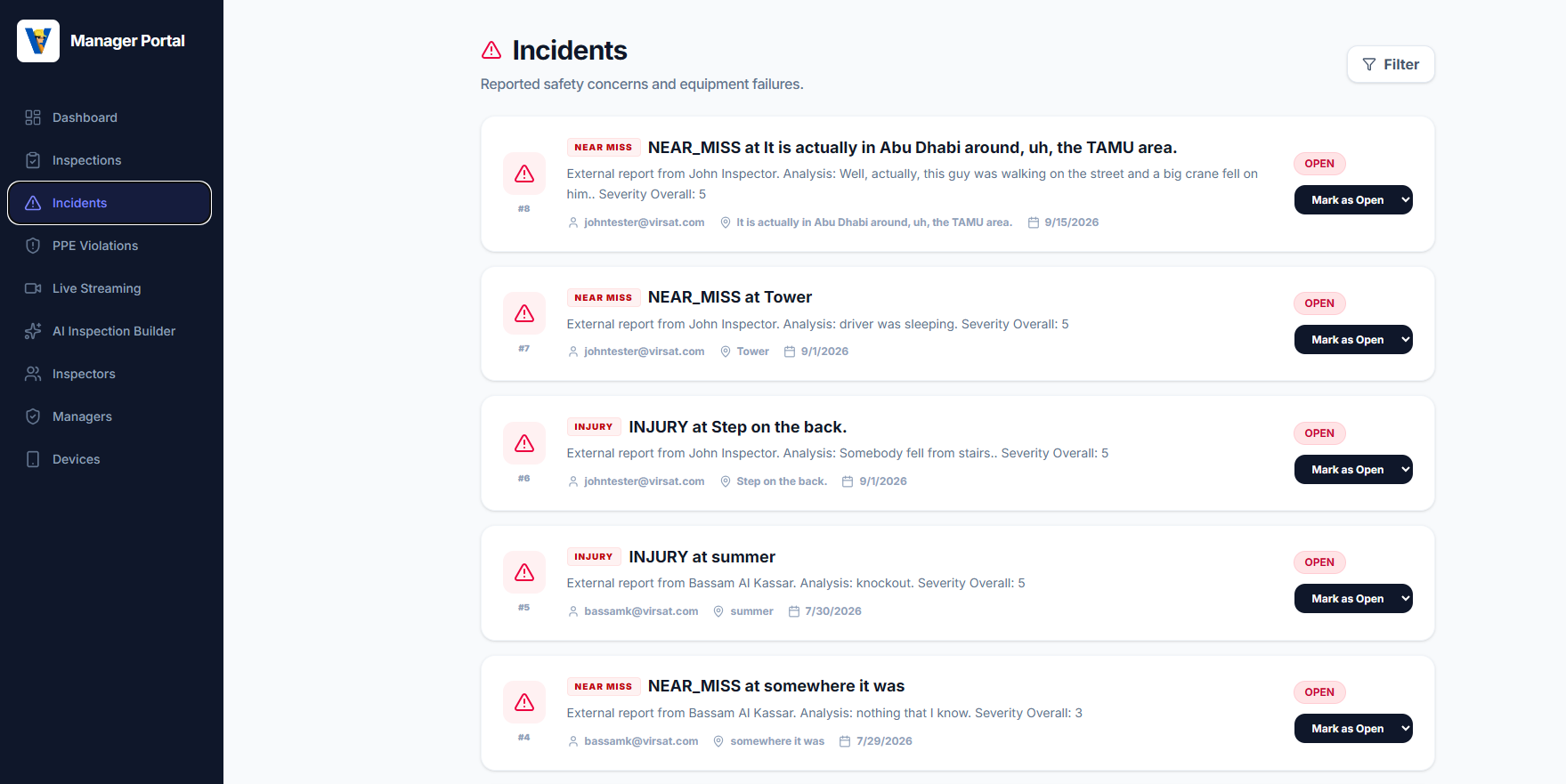
It reaches the portal the moment you submit:
On the headset
On the web console
Who sees my incident report?
Reports are visible to your organization's managers and administrators, who track status (open, in progress, resolved) and can comment on the report.
Can I edit a report after I submit it?
Field submissions are treated as a record of what happened at the time. If something needs correcting, add a comment or contact your manager; this keeps the history of the report intact.
Live streaming
5 articlesHow do I start a live stream to my supervisor?
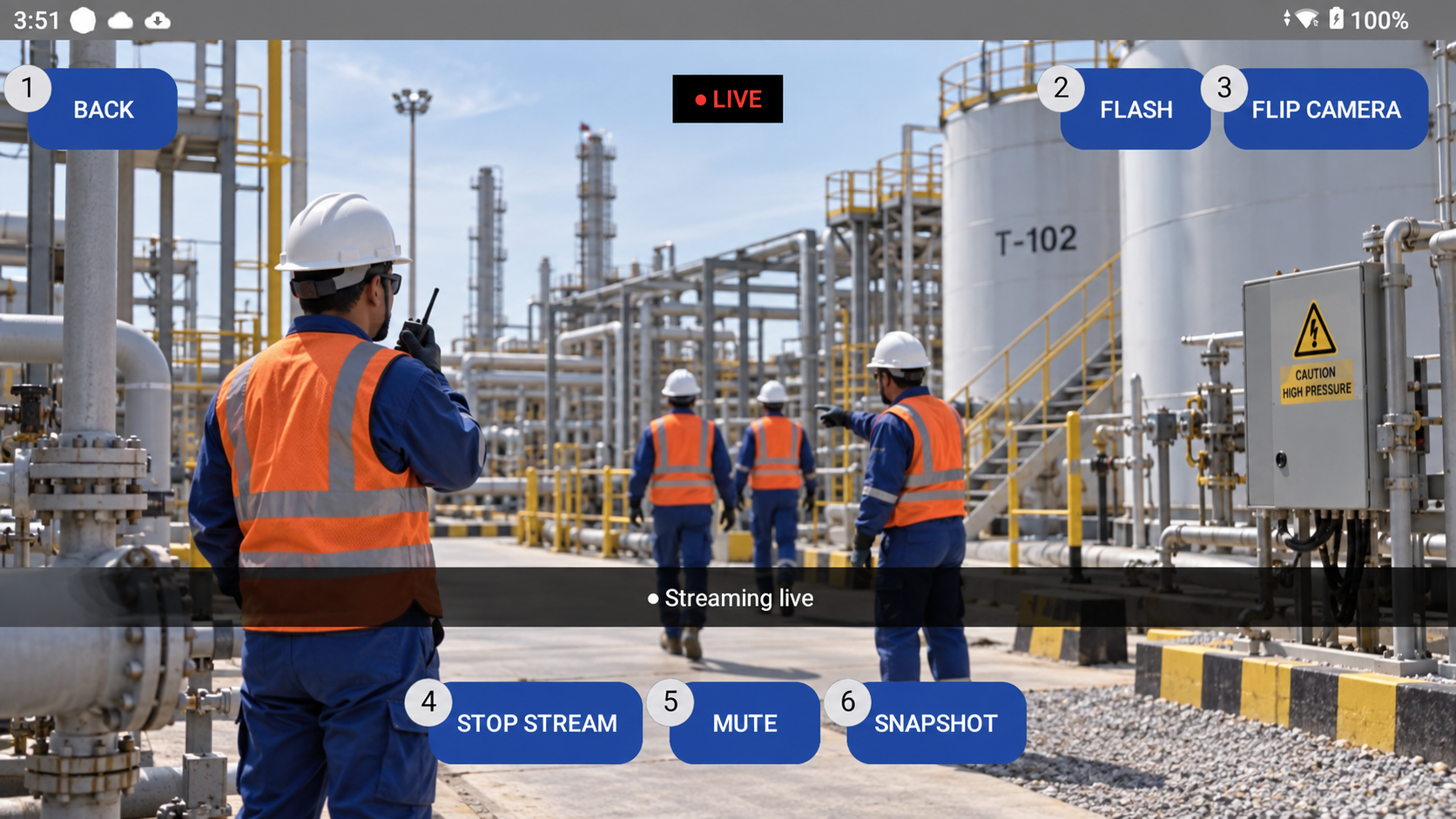
Open Live Stream and say "Start Stream". Your camera and microphone begin sending to the session; a red LIVE badge on screen confirms you're streaming.
Can a supervisor view my stream without my knowledge?
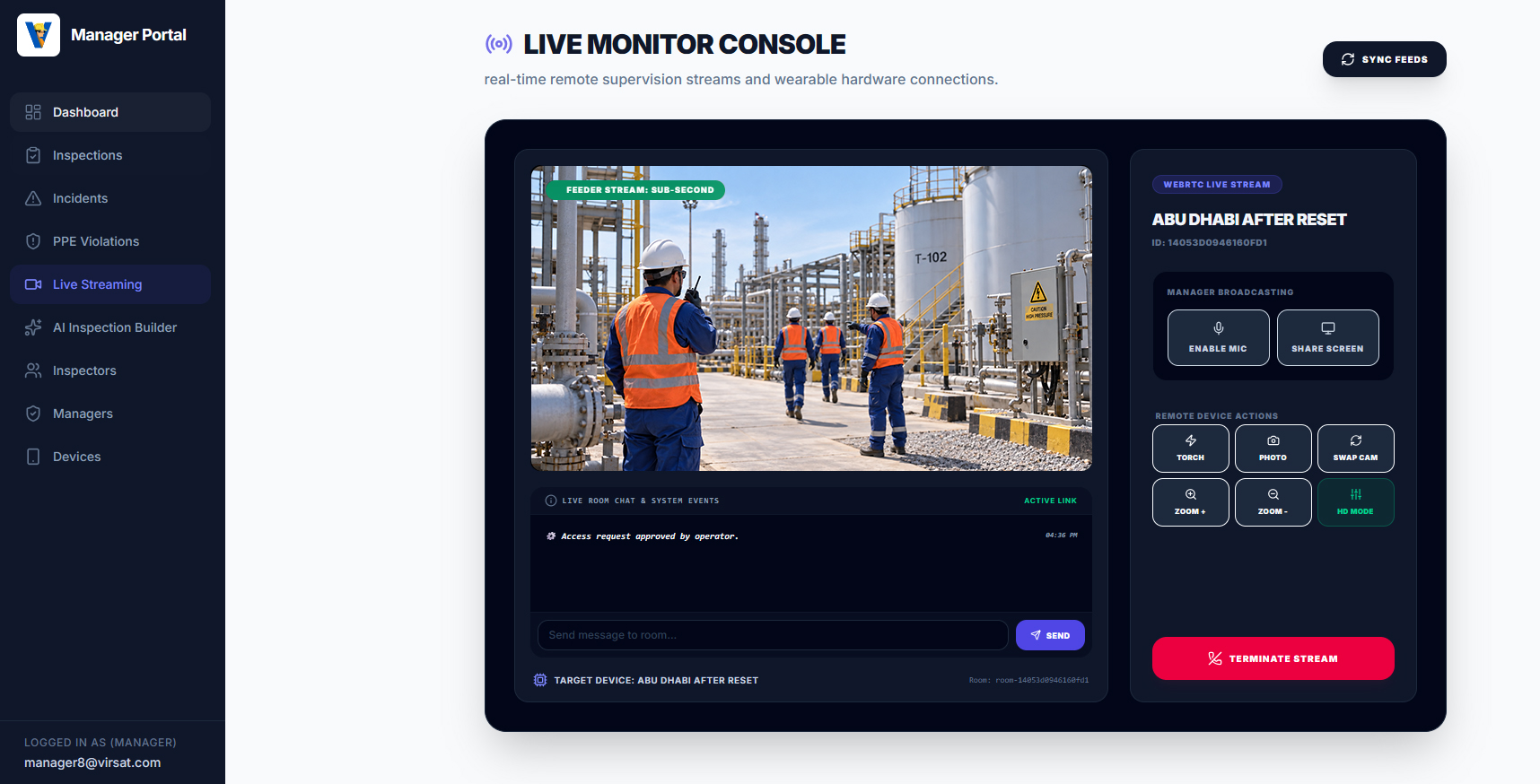
No. When a supervisor requests to view your feed, a prompt appears on your headset asking you to allow or deny access. Streaming and viewing only proceed once you approve it.
What can a supervisor do during a live session?
Once connected, an authorized supervisor can ask you to toggle the flash, zoom in or out, flip the camera, adjust video quality, capture a snapshot, or annotate your view with a pointer or drawing to guide you, all visible on your headset display. They see and control all of this from the web console's Live Monitor Console.
On the headset
On the web console
Can I mute my microphone during a session?
Yes, say "Mute" or "Unmute" at any time; your status updates immediately for the supervisor watching.
How do I end a live session?
Say "Stop Stream". The camera and microphone stop sending immediately and the session closes for everyone connected.
PPE detection
1 articleWhat is PPE violation detection?
Where enabled by your organization, the system can flag a missing item of required personal protective equipment during a session and log it for review. Managers can review each flagged event on the web console and mark it confirmed or a false alarm.
Roles & access
2 articlesWhat account roles exist?
| Role | Typically used by |
|---|---|
| Inspector | Field workers running inspections and reporting incidents on the headset |
| Manager | Supervisors who assign work, review results, and provide live support |
| Administrator | Organization staff managing users, devices, and licenses |
Who decides which inspections I'm allowed to perform?
Your organization's managers assign inspection permissions per inspector. If a workflow you expect to see is missing, ask your manager to check your permissions.
Troubleshooting
4 articlesThe camera or live stream won't start.
Confirm the headset has camera and microphone permission, and that you have a network connection. If it still fails, restart the app and try again; persistent failures should be reported to your administrator.
I can't sign in, or I'm told my license is invalid.
Device licenses are issued per organization and can expire or be reassigned. Contact your administrator to confirm your device's license status.
Voice commands stopped working mid-session.
Say "My Commands" to refresh the list of available phrases for the current screen. If the headset seems unresponsive entirely, a restart usually resolves it.
Where can I get more help?
Check the full App Documentation for step-by-step guides, ask your organization's administrator, or reach VIRSAT support directly at info@virsat.com.
Still stuck?
Our team is happy to help with anything not covered here.